
Getting Started
test2
Beginner
15 min
1
Set-up your phone
Turn the phone on and follow the on-screen instructions, including connecting your Google account to manage the phone over the internet.
If your child has a google account, you add that later.
You’ll also create a Parent Password which protects the sensitive settings.
2
Check the content filters
By default, your phone applies “moderate” filters for "bullying & harassment", "graphic and obscene text", "nudity" and banned words. These are preset to block and save images when triggered. For more info on how the content filters work - see here.
You can view and edit those filters at Settings > SafetyMode Settings, or using remote management.
3
Add your childs' google account
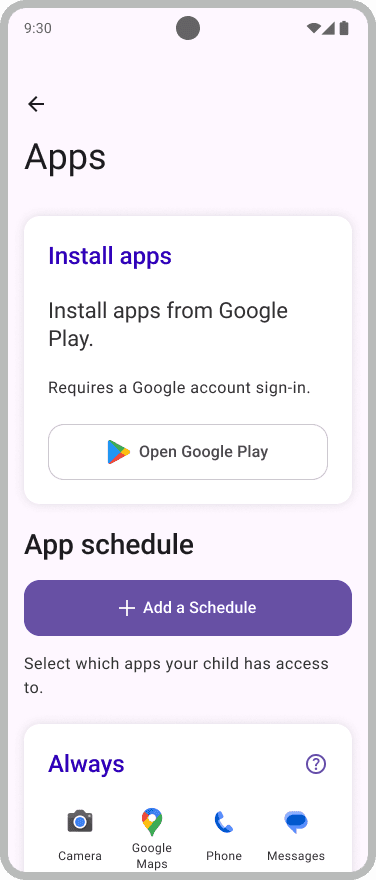
Tap “Apps” to set which apps are available and download more from Google Play.
Note that if you use your own Google account for Google Play (or any other app) then your child will be signed into your Google account throughout the Other phone. That’s a bad idea! We would advise you to give them their own Google account.
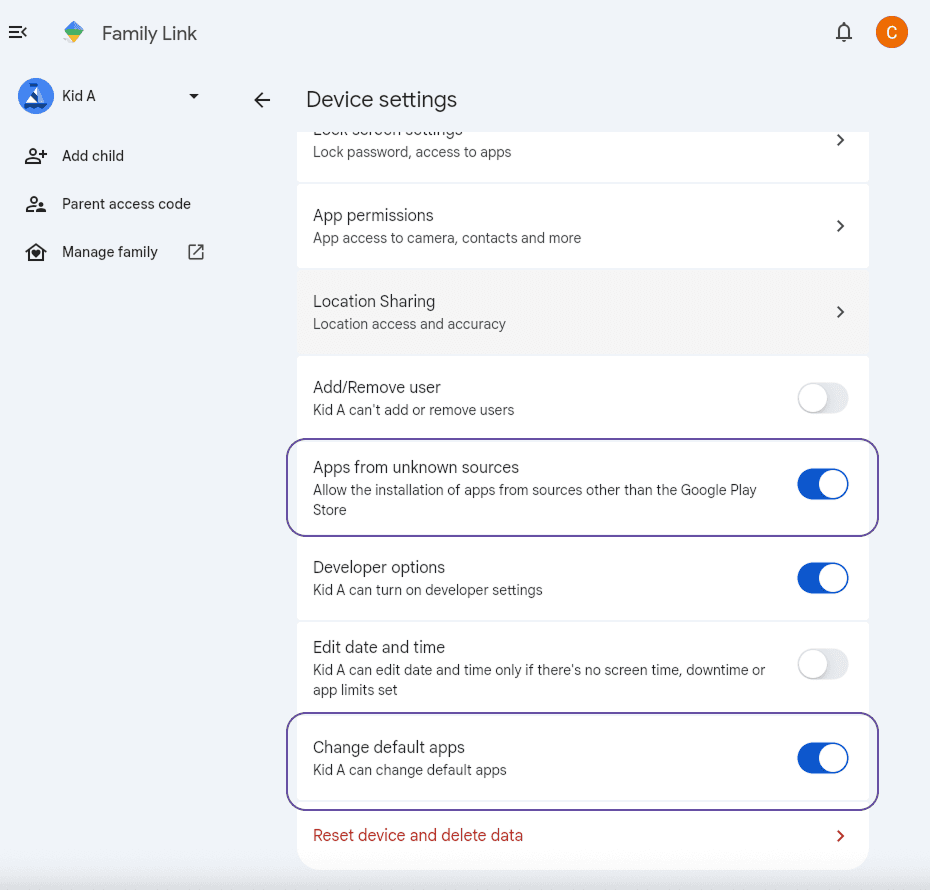
Important: If you already have Google Family Link set up, SafetyMode must be an allowed app, and you must change the settings on Family Link to allow the phone to "Make changes to default apps" and "Install apps from unknown sources" for updates.
4
Set-up a schedule (optional)
Once you have downloaded relevant apps, you can set up a schedule to make certain apps available only for home work in the evenings, or 30 minutes of games apps per day.
Once created simply drag and drop the apps you want then into each schedule to set boundaries.
5
Save yourself as a “Favourite” (Optional)
Make yourself easy to call or text by saving yourself as a contact in the Contacts app. Then tap “Favourites” on the menu and add yourself as a Favourite for calls and texts.
That’s all! Your phone is good to go. Your child can customise the phone design without doing any harm and you can manage the phone on the web at SafetyMode.com.
Have fun! And let us know how you get on 🙂
Set-up your phone
Turn the phone on and follow the on-screen instructions, including connecting your Google account to manage the phone over the internet.
If your child has a google account, you add that later.
You’ll also create a Parent Password which protects the sensitive settings.
Check the content filters
By default, your phone applies “moderate” filters for "bullying & harassment", "graphic and obscene text", "nudity" and banned words. These are preset to block and save images when triggered. For more info on how the content filters work - see here.
You can view and edit those filters at Settings > SafetyMode Settings, or using remote management.
Add your childs' google account
Tap “Apps” to set which apps are available and download more from Google Play.
Note that if you use your own Google account for Google Play (or any other app) then your child will be signed into your Google account throughout the Other phone. That’s a bad idea! We would advise you to give them their own Google account.
Important: If you already have Google Family Link set up, SafetyMode must be an allowed app, and you must change the settings on Family Link to allow the phone to "Make changes to default apps" and "Install apps from unknown sources" for updates.
Set-up a schedule (optional)
Once you have downloaded relevant apps, you can set up a schedule to make certain apps available only for home work in the evenings, or 30 minutes of games apps per day.
Once created simply drag and drop the apps you want then into each schedule to set boundaries.
Save yourself as a “Favourite” (Optional)
Make yourself easy to call or text by saving yourself as a contact in the Contacts app. Then tap “Favourites” on the menu and add yourself as a Favourite for calls and texts.
That’s all! Your phone is good to go. Your child can customise the phone design without doing any harm and you can manage the phone on the web at SafetyMode.com.
Have fun! And let us know how you get on 🙂