
Updating SafetyMode
This guide explains how to update the SafetyMode app to the latest version on your child’s device. Updating ensures you have the newest safety features, improvements, and bug fixes, and keeps the content filters running smoothly across all apps. The process involves downloading the update, re-enabling SafetyMode AI, and allowing the required permissions so the app can continue protecting the device effectively.
Intermediate
10min
1
Stage One
Note: To watch our video guide, scroll to bottom of the page
Step 0: Ensure your device is connected to Wi-Fi or mobile internet.
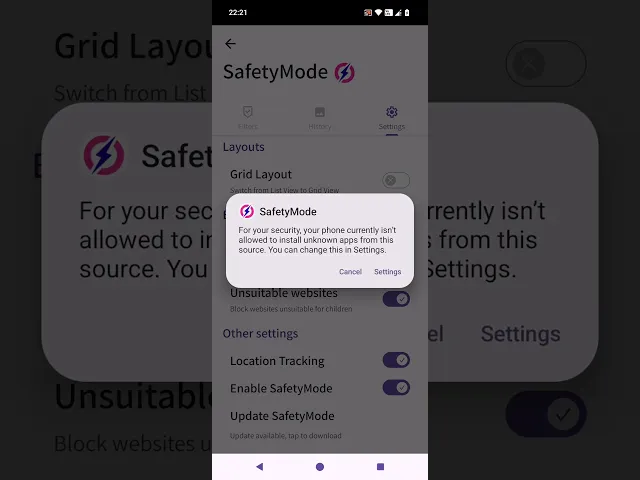
Step 1: Go to Settings > SafetyMode Settings > Settings Tab > Update SafetyMode
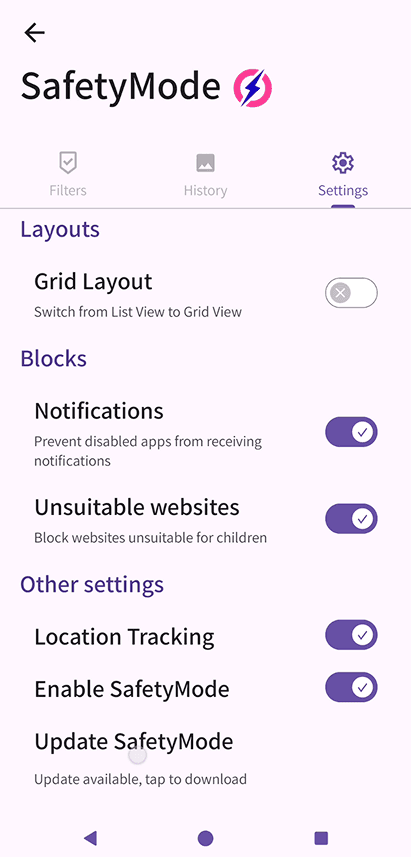
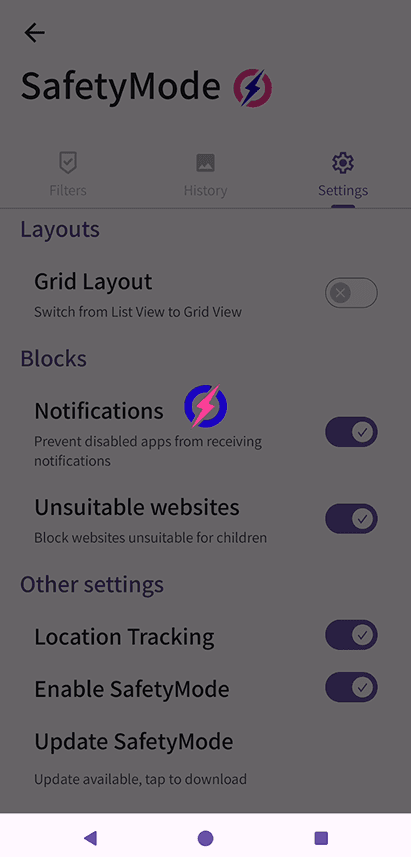
Step 2: Remain on this screen while the download completes. This may take up to 2 minutes depending on your internet speed.
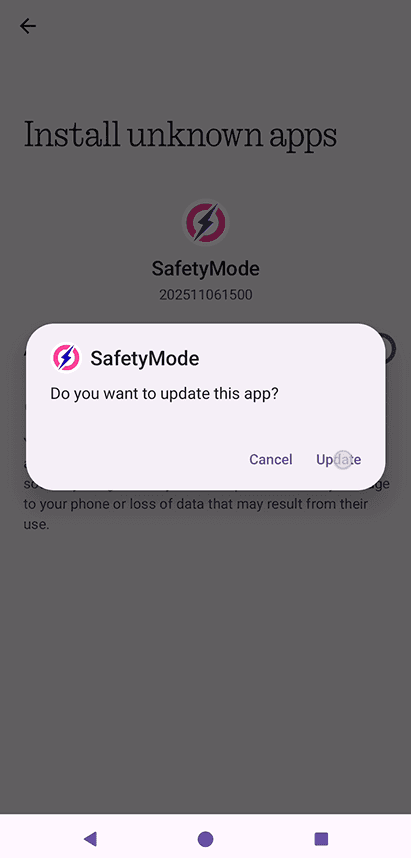
Step 3: When prompted, press “Update”.
Step 4: On the next prompt, select “Open”.
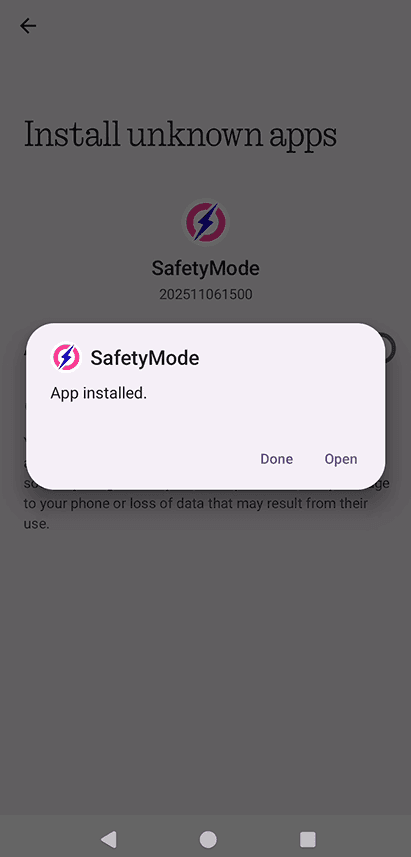
Step 5: When the following screen appears, press “Enable”.
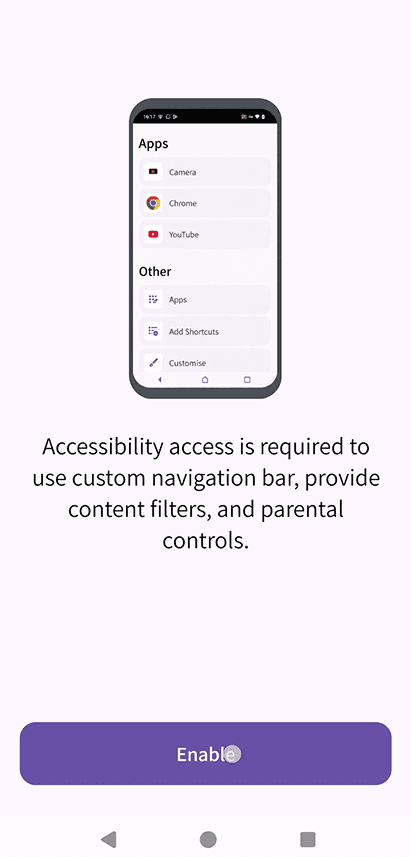
Step 6: Select “Agree & Enable”.
Enabling Accessibility Services allows SafetyMode to detect what’s on the screen and apply the filters you’ve set.
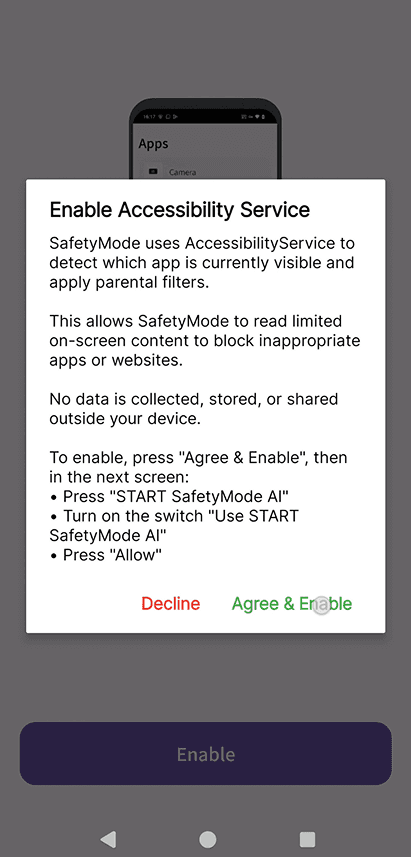
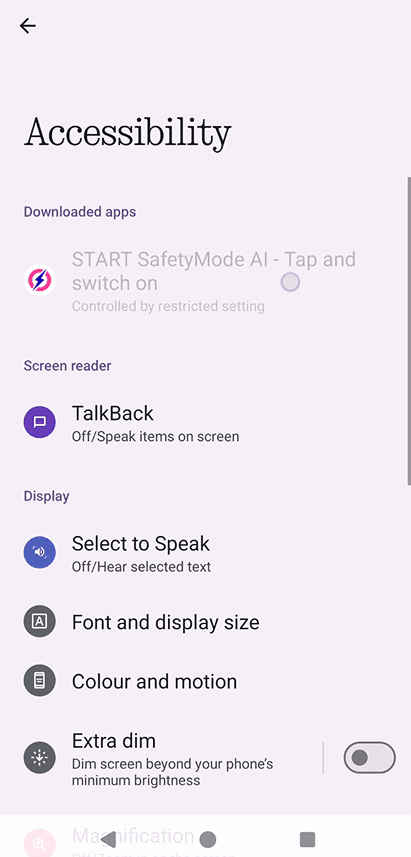
Step 7: Press “START SafetyMode AI”.
If the Accessibility option is greyed out and you can’t tap it (like below), move to Stage Two.
If the option is clickable and you can toggle it on, continue to Stage Three.
2
Stage Two
Remember: If you have already toggled on the SafetyMode AI then continue to Stage Three
Step 8: Select “Close”.
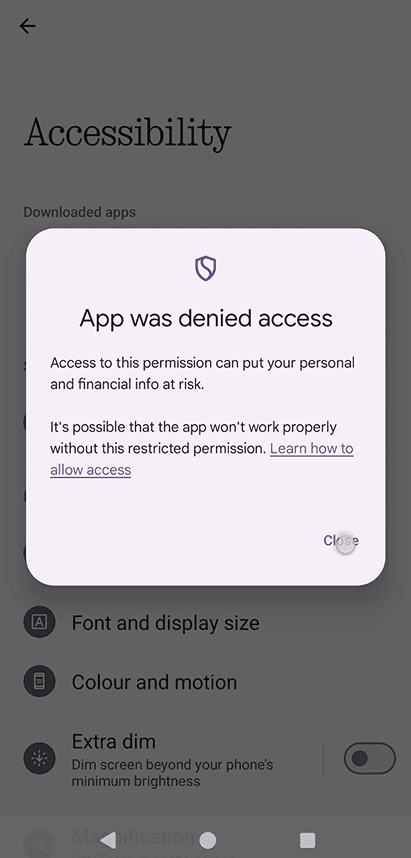
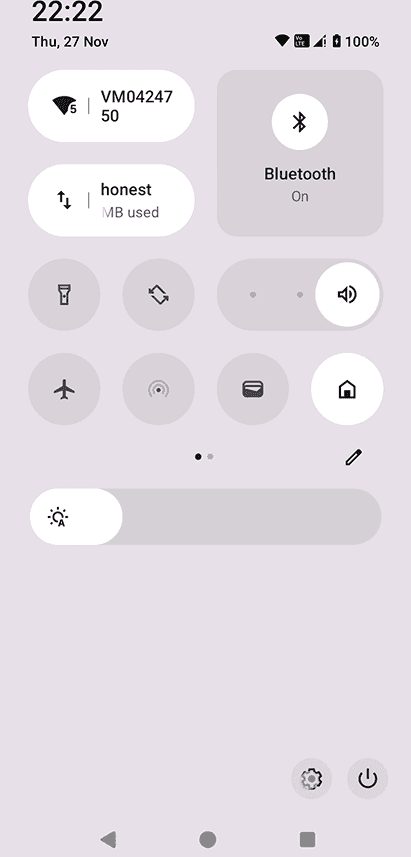
Step 9: Swipe down from the top of the device and tap the Settings icon.
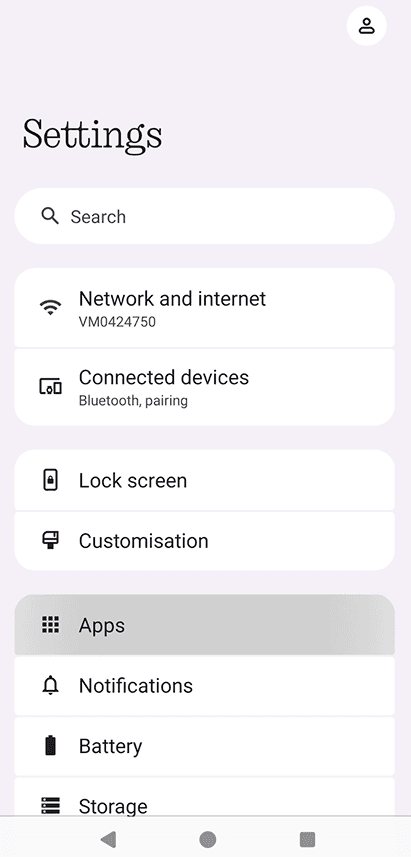
Step 10: Select Apps.
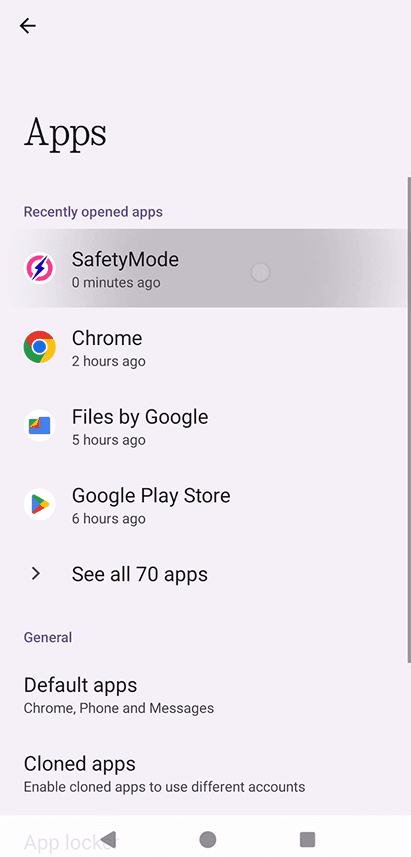
Step 11: Choose SafetyMode from the list.
Step 12: Tap the three dots in the top-right corner.
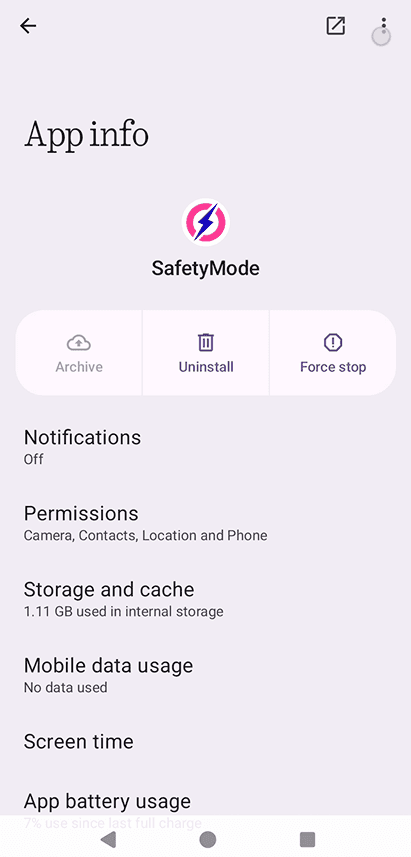
Step 13: Select “Allow restricted settings”. If prompted, enter your device passcode/pattern.
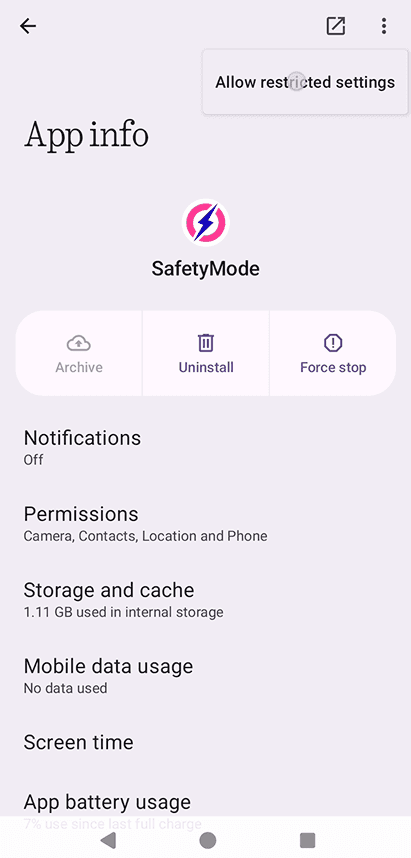
Step 14: Tap the open icon in the top-right corner.
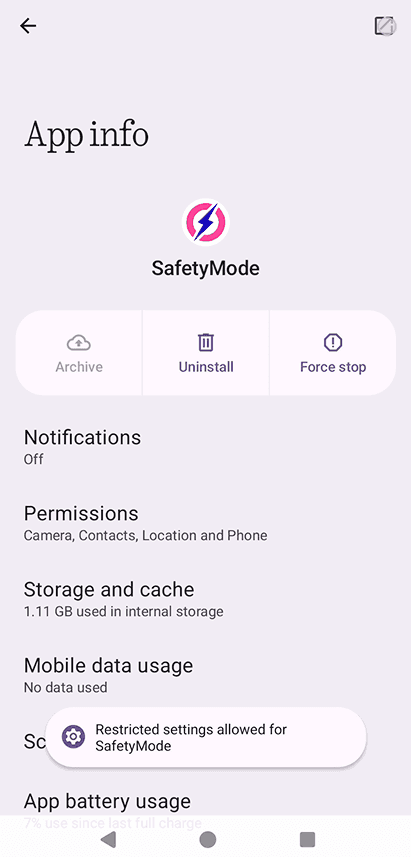
Step 15: Press “Enable”.
Step 16: Select “Agree & Enable”.
Enabling Accessibility Services allows SafetyMode to detect what’s on the screen and apply the filters you’ve set.
Step 17: Press “START SafetyMode AI” again.
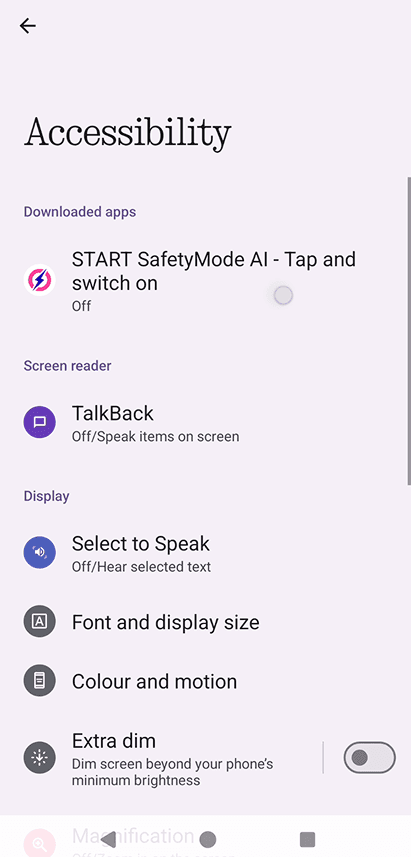
3
Stage Three
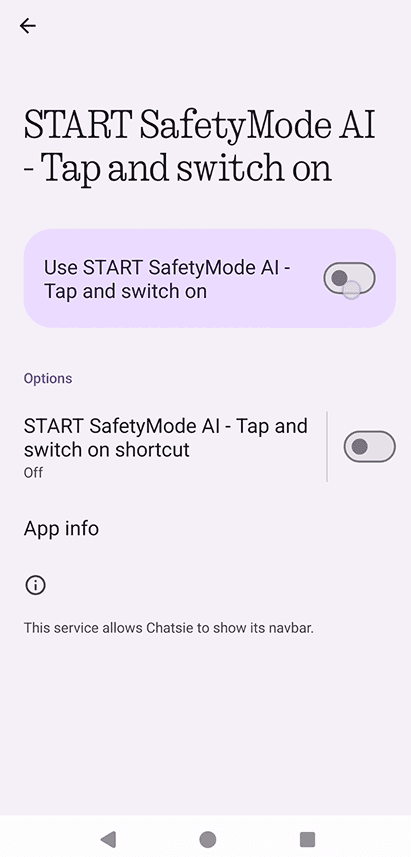
Step 18: Toggle on the switch beside “Use START SafetyMode AI”.
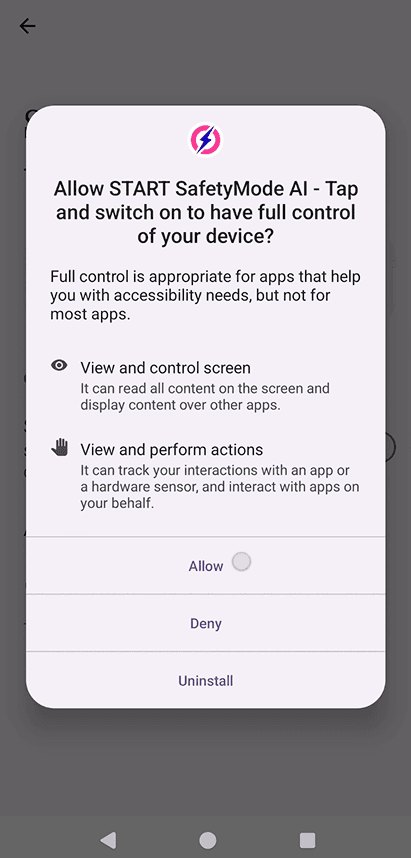
Step 19: Select “Allow”.
4
Stage Four
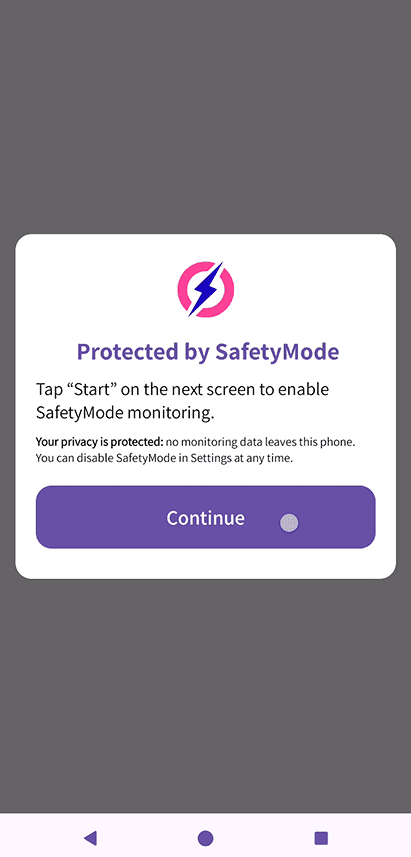
Step 20: Press “Continue”.
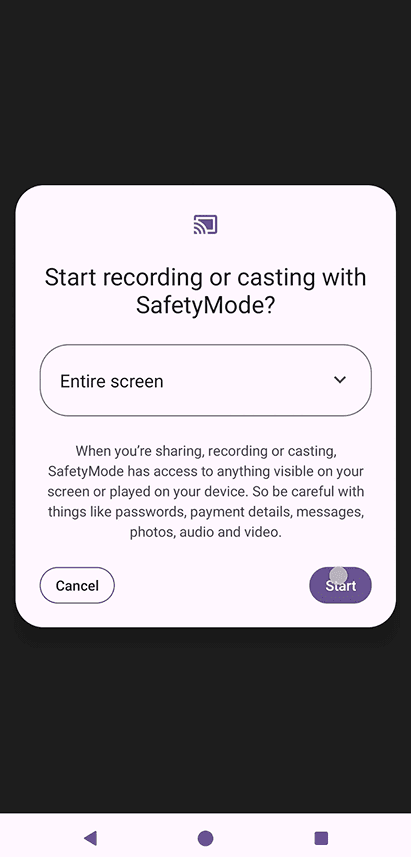
Step 21: Tap “Start”.
Step 22: Select “OK”.
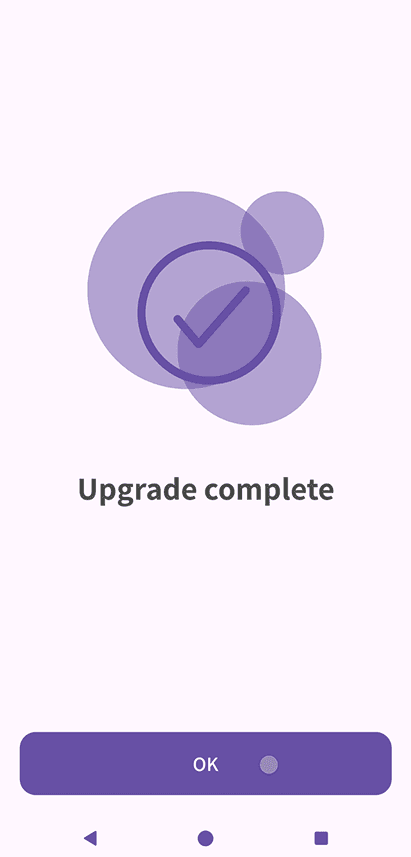
You have now successfully updated the SafetyMode app.
5
Video guide
Stage One
Note: To watch our video guide, scroll to bottom of the page
Step 0: Ensure your device is connected to Wi-Fi or mobile internet.
Step 1: Go to Settings > SafetyMode Settings > Settings Tab > Update SafetyMode
Step 2: Remain on this screen while the download completes. This may take up to 2 minutes depending on your internet speed.
Step 3: When prompted, press “Update”.
Step 4: On the next prompt, select “Open”.
Step 5: When the following screen appears, press “Enable”.
Step 6: Select “Agree & Enable”.
Enabling Accessibility Services allows SafetyMode to detect what’s on the screen and apply the filters you’ve set.
Step 7: Press “START SafetyMode AI”.
If the Accessibility option is greyed out and you can’t tap it (like below), move to Stage Two.
If the option is clickable and you can toggle it on, continue to Stage Three.
Stage Two
Remember: If you have already toggled on the SafetyMode AI then continue to Stage Three
Step 8: Select “Close”.
Step 9: Swipe down from the top of the device and tap the Settings icon.
Step 10: Select Apps.
Step 11: Choose SafetyMode from the list.
Step 12: Tap the three dots in the top-right corner.
Step 13: Select “Allow restricted settings”. If prompted, enter your device passcode/pattern.
Step 14: Tap the open icon in the top-right corner.
Step 15: Press “Enable”.
Step 16: Select “Agree & Enable”.
Enabling Accessibility Services allows SafetyMode to detect what’s on the screen and apply the filters you’ve set.
Step 17: Press “START SafetyMode AI” again.
Stage Three
Step 18: Toggle on the switch beside “Use START SafetyMode AI”.
Step 19: Select “Allow”.
Stage Four
Step 20: Press “Continue”.
Step 21: Tap “Start”.
Step 22: Select “OK”.
You have now successfully updated the SafetyMode app.
Video guide